Terrablox
A downloadable game for Windows and Linux
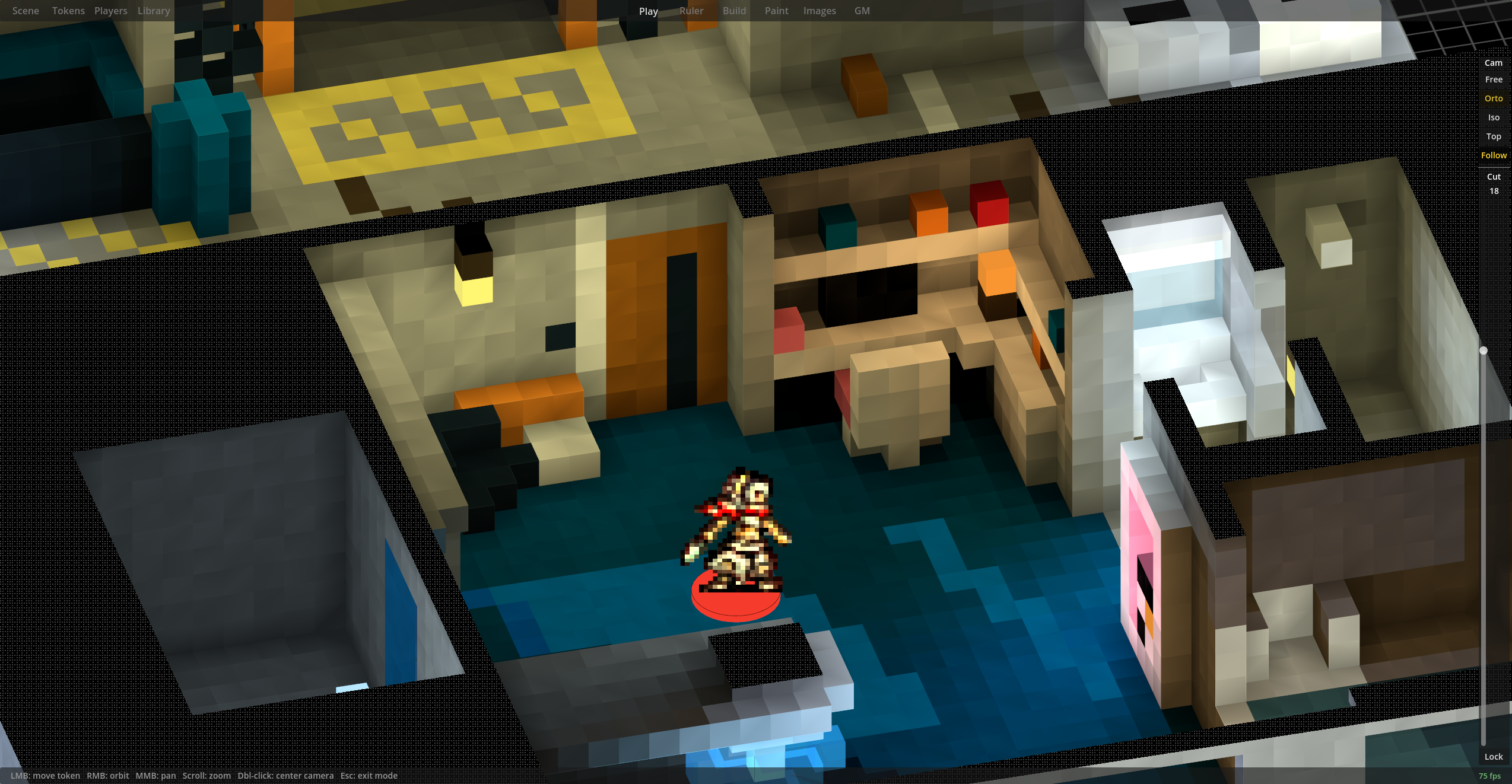
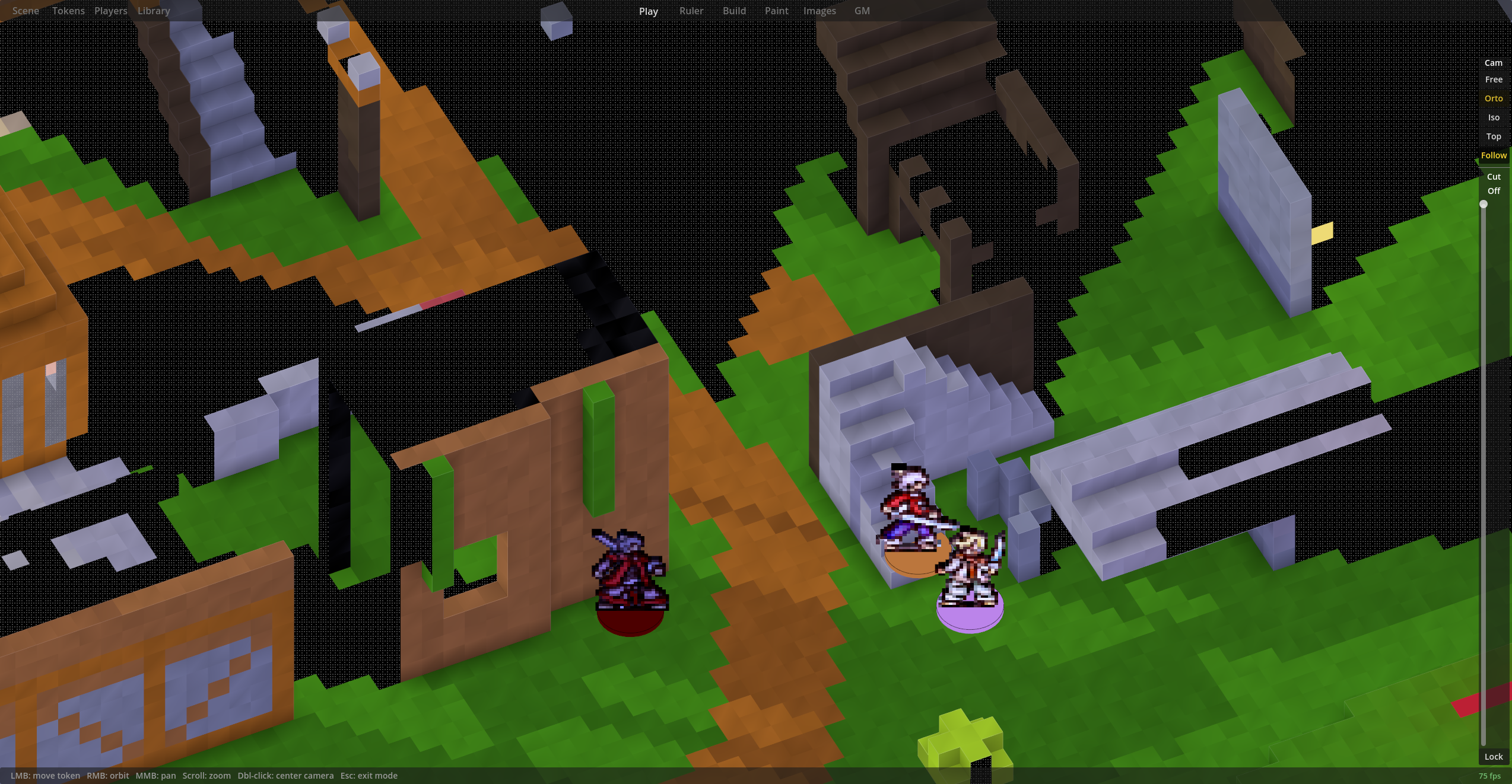
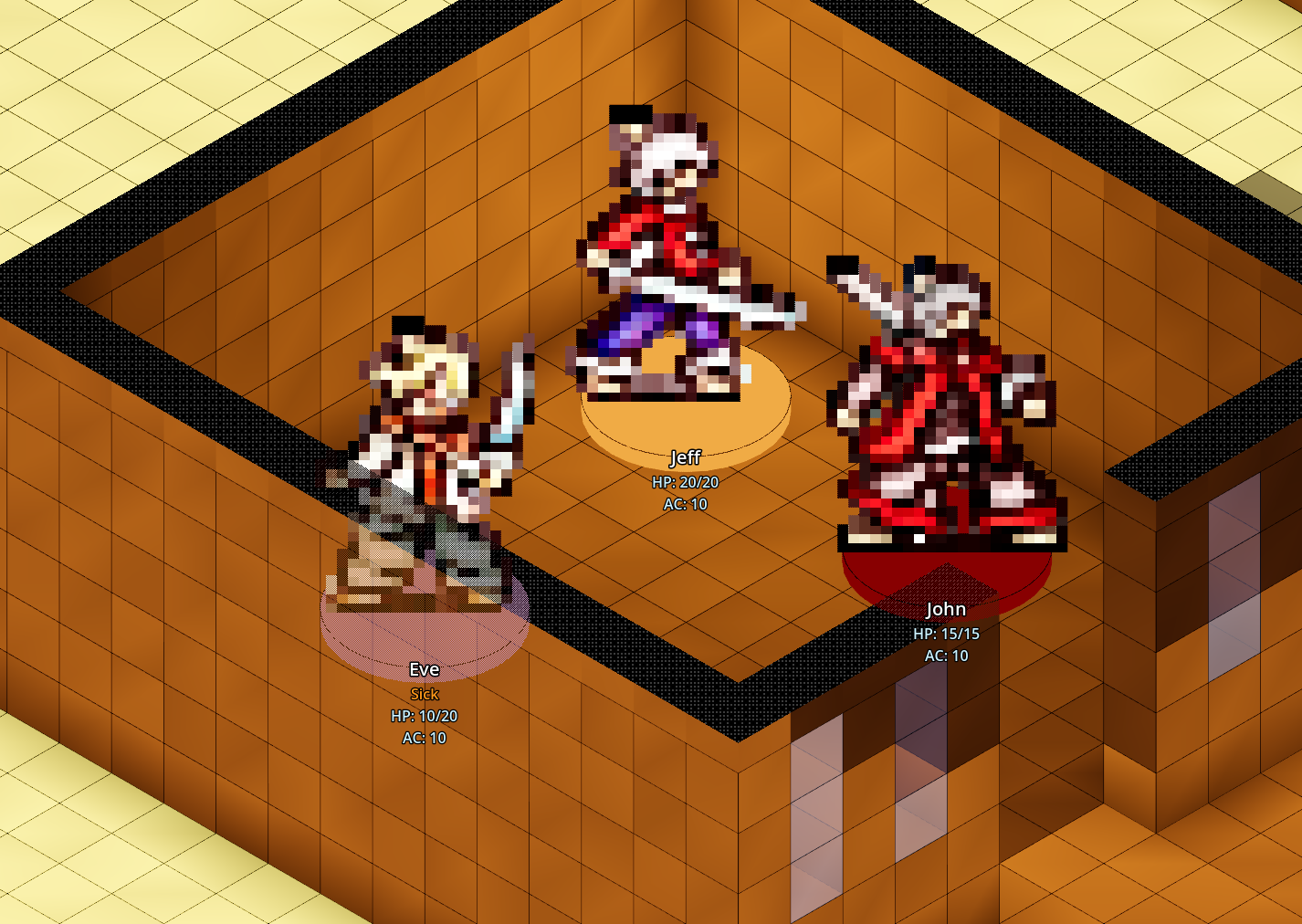
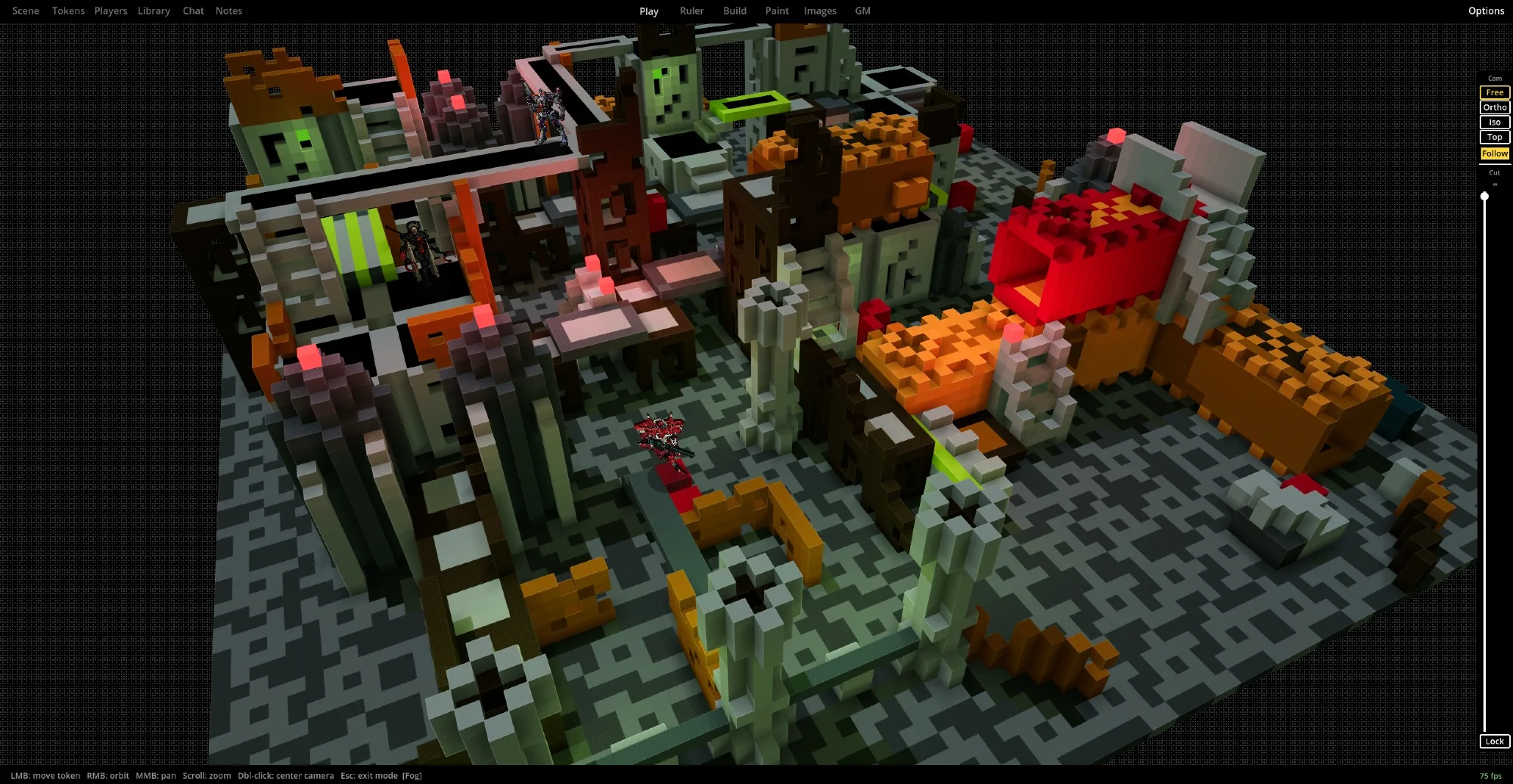
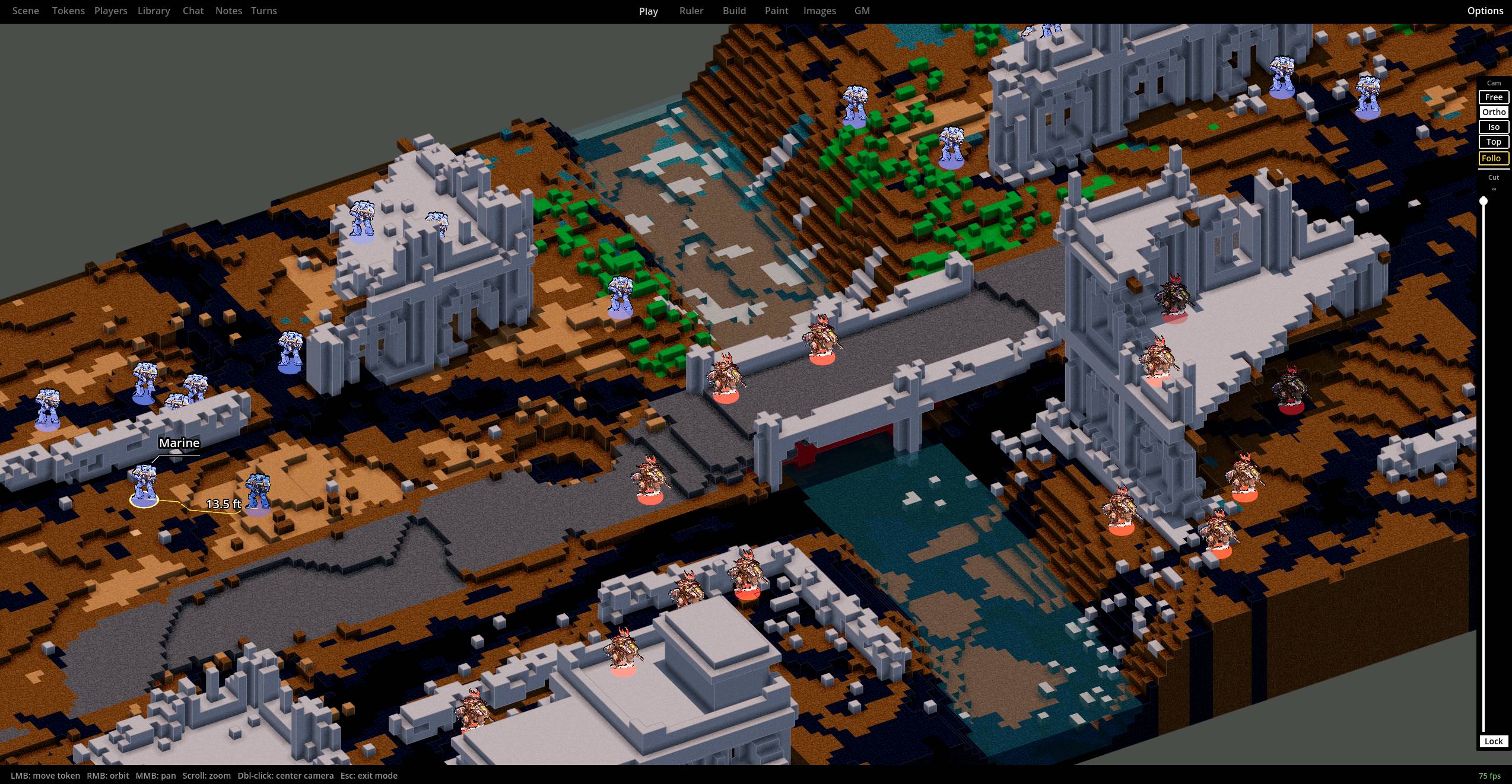
Terrablox is a 3D voxel-based virtual tabletop for TTRPG or tabletop wargames. Everything is made of colored voxels, so that you're not bottlenecked by assets in particular styles or genres.
Wishlist on Steam: https://store.steampowered.com/app/4842910/Terrablox/
- Terrablox - Voxel 3D virtual tabletop - Devlog 1
- Terrablox - Voxel 3D virtual tabletop - Devlog 2
- Terrablox Voxel VTT Devlog 3 | Lots of quality of life features - YouTube
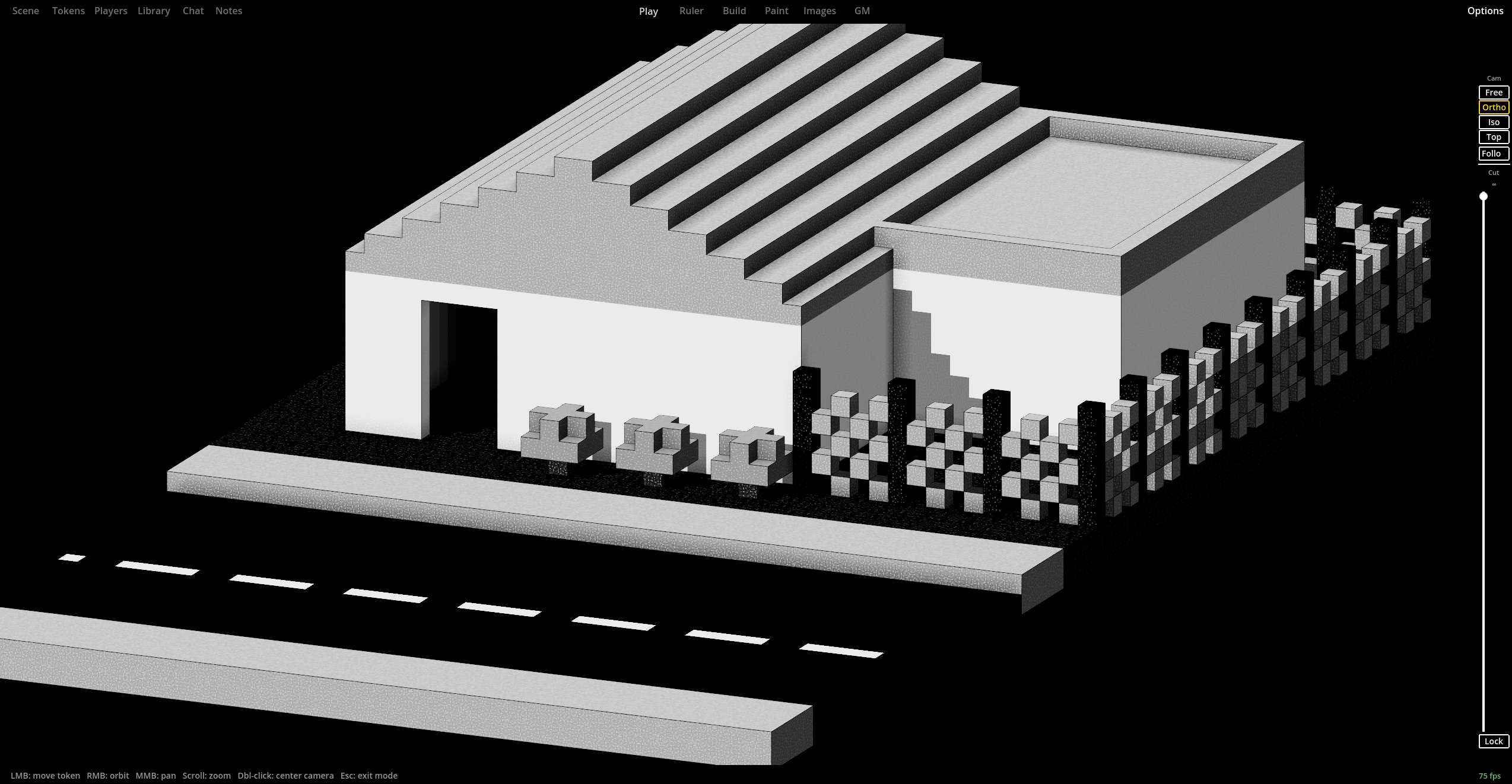
Building is fast. Left-click to paint, drag to fill a wall or a variety of shapes like ramps, pyramids, hills and more. Copy any chunk of your scene and paste it elsewhere or share it as a text string in your notes (inspired by Talespire "slabs").
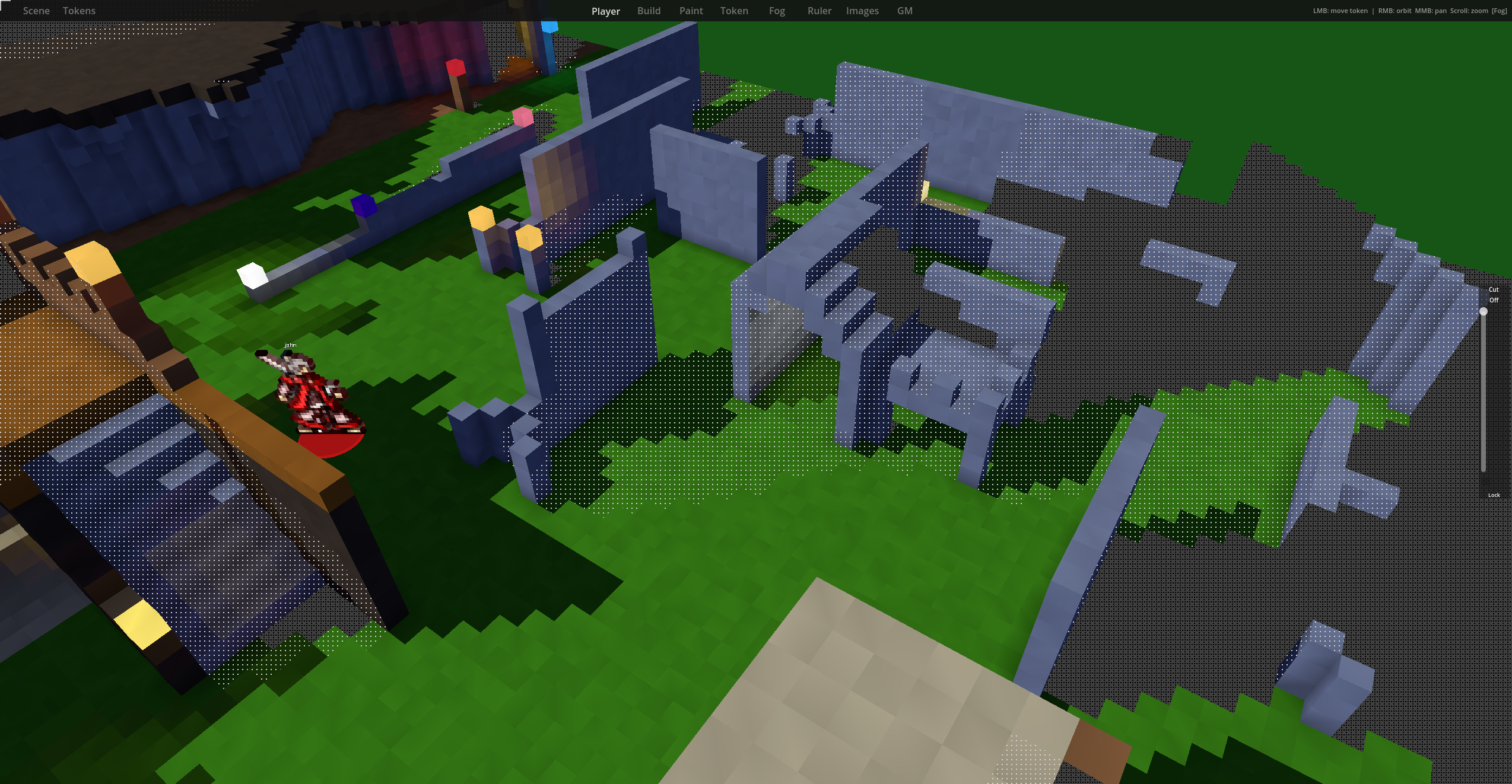
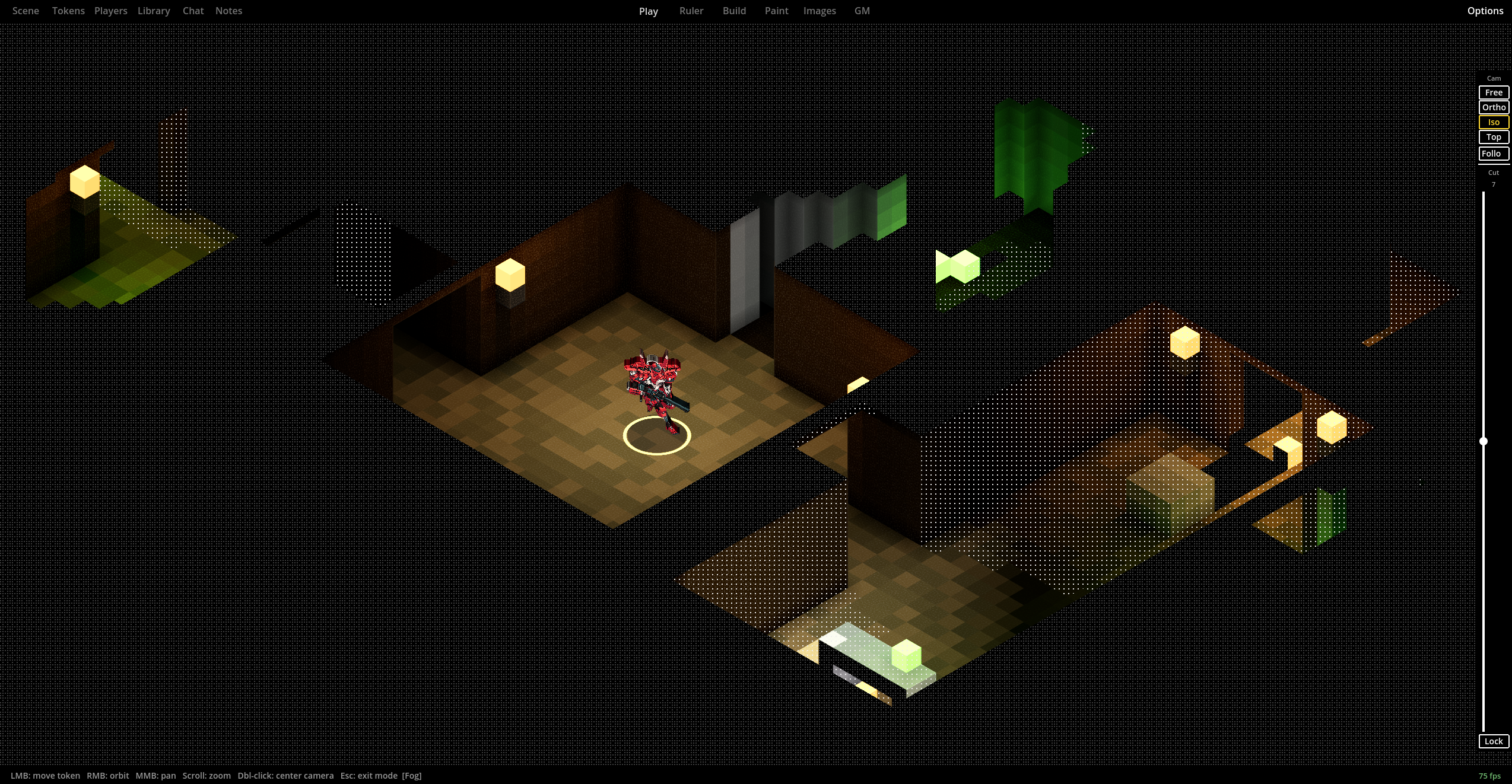
Fog of war is fully 3D. Areas your party has visited can stay visible behind partial fog. Visibility is team based, so your players can share vision, have individual vision, or you could run PvP wargames with fog of war tracking multiple teams.
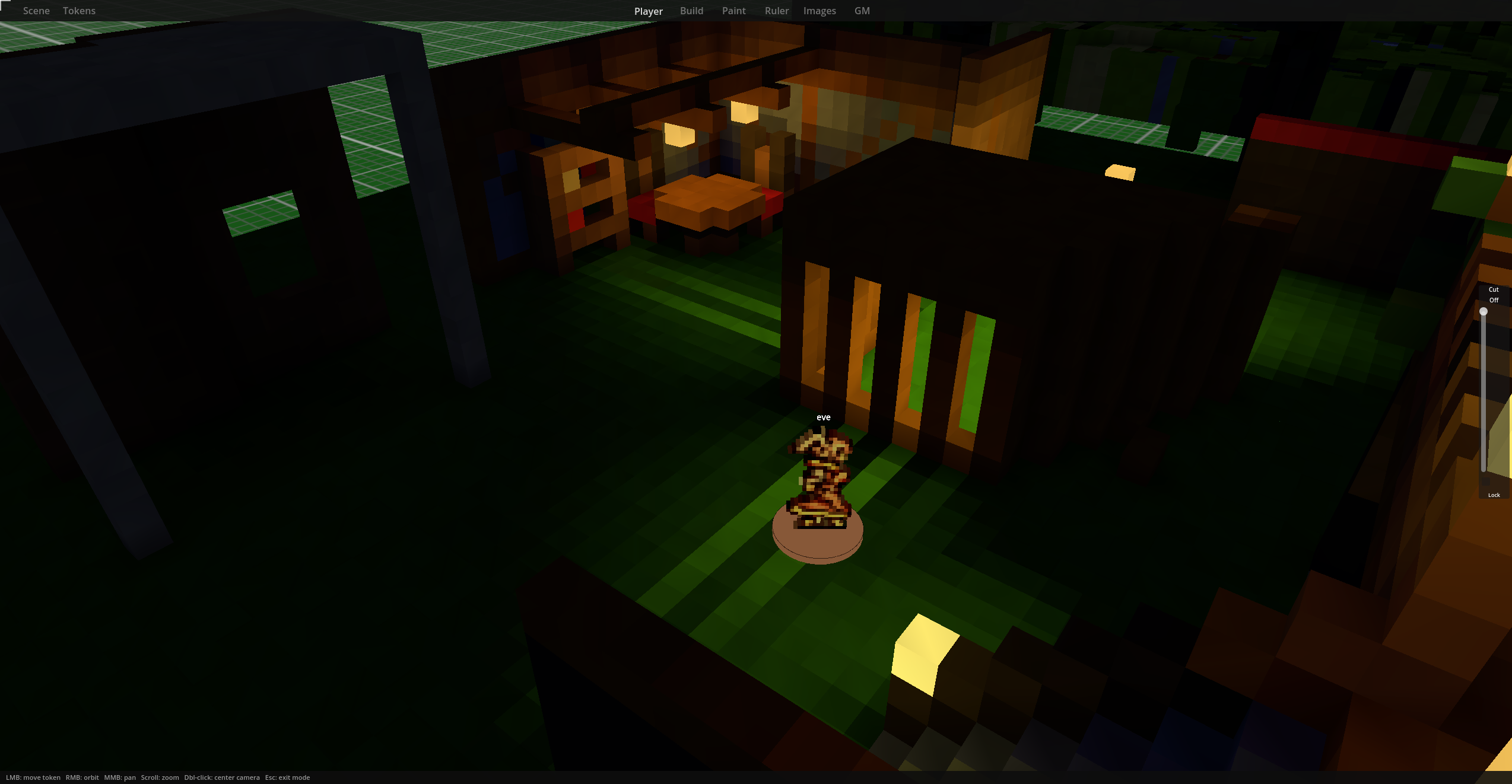
Lighting is raytraced through the voxel grid: sunlight, ambient occlusion, colored lighting, emissive blocks, and more.
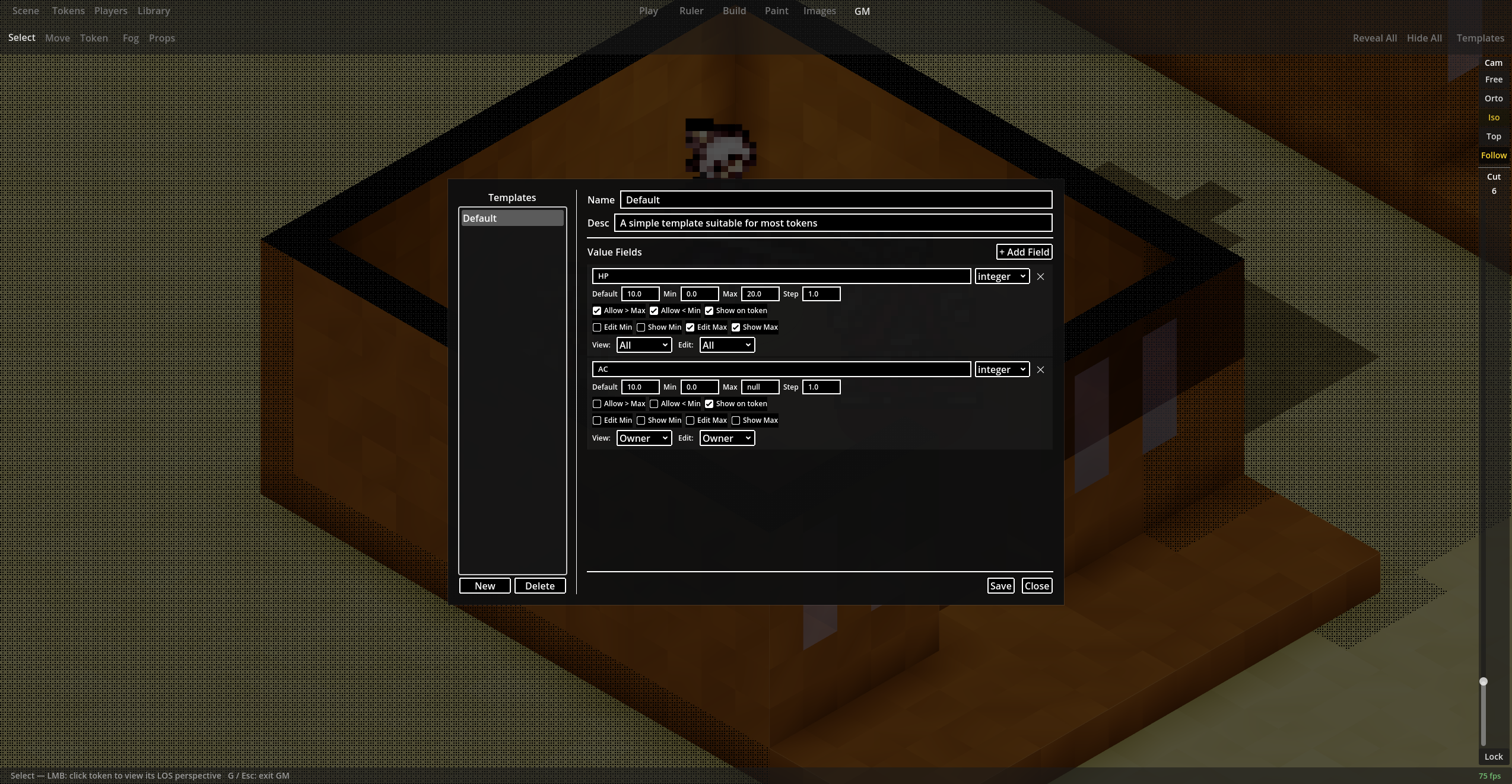
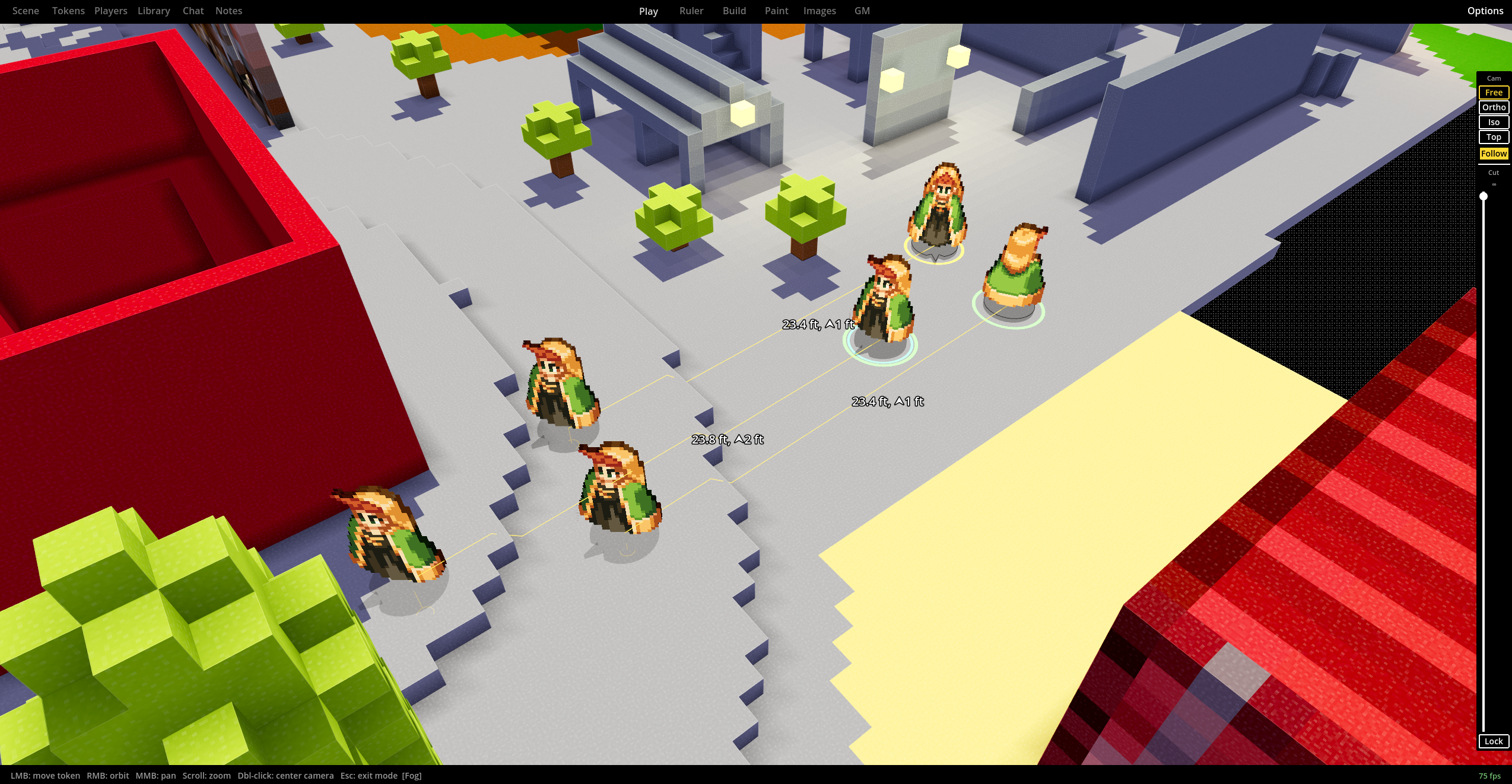
Tokens are built as "standees" from any imported image, and can be scaled to any size. You can convert sections of the level into "props" that can be moved and rotated like tokens.
This project is in development and currently has only direct IP multiplayer. You'll need to be on the same LAN or be able to forward port 7777.
Current features:
- Build voxels with a variety of 3D shape tools like rectangles, cylinders, ramps, pyramids, etc.
- Fog of war / line of sight
- Shared or private vision - each team has its own vision and exploration
- Players can be granted permission to get vision from and/or move tokens
- Players can be assigned to any combination of teams
- Build voxels in any color, make them transparent, emit light, and/or non-solid
- Copy & paste sections of blocks and save them to a prefab library - pastes can be rotated, flipped, and scaled
- Import Magicavoxel files
- Import images with optional heightmaps and place them into scenes for reference, or convert them directly into voxels
- Import any image as a custom standee tokens. Standees can be any size, can emit light, and be toggled as flying
- Alternate camera modes like isometric and top-down
- Custom units for rulers
- Voxel-based lighting from a directional sun, ambient sky, basic ambient light, and light-emitting blocks
- Convert selections of blocks into "props" that can be moved around and rotated like tokens - use for doors, furniture, vehicles, etc.
Download
Install instructions
Download the latest dated copy above. Portable/no-install - unzip to a folder like "Terrablox" and run Terrablox.exe. A /Terrablox/ folder will be created in your shared files directory for saved scenes and custom assets like character images.
Development log
- Updates for 2026-07-1521 days ago
- Updates for 2026-06-2343 days ago
- Update for 2026-06-1156 days ago
- Updates for 2026-05-2870 days ago
Comments
Log in with itch.io to leave a comment.
Hey, I love the project! I unfortunately have not been able to use any version because each time I load up a scene all I can see if what looks like a fractured mirror with constantly changing colors. I experimented with all the camera angles and setting I could but it did not get rid of the crazy fracturing colors. I was unable to see anything properly to build or view other things.
Best of luck with the project, I will have to check in again in the future!
Oof, that sucks! Sounds like some sort of shader issue- I’ve only tested it on a fairly high end GPU. Does it do anything as the camera moves around, like there’s a broken 3D scene filled with garbage data, or is it just static colors? Would you mind sharing system specs like GPU?
When I move the camera there seems to be a focal point that the colors fracture around so I guess you could say there is a 3D scene with garbage data, but it is so garbage that I cannot tell anything about it. Even if I try to do build or such it doesn't change. The things I was able to see were settings that effected ambient light or background colors.
Here are my specs
Processor AMD Ryzen 5 3600 6-Core Processor 3.59 GHz
Installed RAM 16.0 GB
Storage 466 GB SSD Samsung SSD 870 EVO 500GB
Graphics Card AMD Radeon RX 6700 XT (12 GB)
System Type 64-bit operating system, x64-based processor
Edition Windows 10 Home
Version 22H2
Sorry for not replying sooner, but I think this might be fixed? There was no obvious “smoking gun” bug, but there was a bit of math in the shader that supposedly acts differently on Nvidia vs. AMD cards, so I tried taking that out? Please let me know if you’re able to test a newer build.
Hey T. Hill-Hand! Thanks for the update! I have some maybe good news and bad news. The bad news is that it still does not work on my machine with the specs I shared above. I have the same result as before with seeing kind of fracturing and not being able to make anything out on the screen. The good news is it does work on my wife's computer which uses an intel processor and NVIDIA GPU, not an AMD. When I got a few friends to test it out we noticed that intel processors were in the 3 computers that could run it and amd processors in the 2 that could not. We didn't talk about graphics cards through for whatever reason haha
Here are my wife's computer specs if you want to reference them
Processor Intel(R) Core(TM) i5-8600K CPU @ 3.60GHz 3.60 GHz
Installed RAM 32.0 GB S
storage 954 GB SSD T-FORCE 1TB
Graphics Card NVIDIA GeForce GTX 980 (4 GB)
System Type 64-bit operating system, x64-based processor
Is this what you’re seeing? https://github.com/godotengine/godot/issues/109679 - If so it sounds like the AMD drivers from June/Jul/Aug 2025 had this issue, and newer ones maybe fix it? But I’m not seeing any definite confirmation that it was fixed.
A large list of things in no particular order:
Overall though, it feels like it's just a couple things away from being ready for an actual session. Very excited to gives this a real try.
Awesome, thanks you testing an actual internet session! This is a good list.
Can you elaborate on this one? The grid for Tab vs. Build should be identical, and are drawn using all the same systems in the same way, as far as I can tell. The only difference is that Build mode also brightens the scene. It should definitely be totally separate from fog-of-war- what does “Reveal all” change in the grid, exactly?
EDIT: Ah, nevermind, I found it. The full-fog effect is suppressing more outlines than it should be.
These multiplayer related bugs should, hopefully, be fixed in the 2026-06-23 update.
Managed to do some testing locally with a second instance of terrablox running. Seems like permissions-wise everything related to tokens has been cleaned up! Thanks!
More notes from testing!
I think I’ve got all these fixed for the next update. Overlapping actually SHOULD have been allowed, there was a side effect with how the climbing worked that was breaking it. For up/down movement, Alt+Q/E moves flying tokens up and down, though I don’t think I put that in the hints anywhere.
Thanks for all the fast replies and hard work! Very excited to use it for our actual sessions, I've built out several terrible looking maps already. Which reminds me, is there a convenient way of exporting entire scenes as images somehow?
Yeah! In the “Images” tab, there’s an Export tool for top-down and isometric views of the entire scene.
This is really cool!
Any chance of a linux build?
It should be doable- I also want to try and get a web build, at least for a player-only version. The lighting system is pretty rough right now, not even touching the GPU at all yet, so I think once I’ve got that and multiplayer working the next step will be Mac and Linux builds, since in theory Godot makes that pretty easy.
Just tried making a Linux build if you’d be so kind as to test it and let me know what happens. I’ve literally never tried building for Linux from Godot before, and don’t have a Linux install to test on, so I have no idea if it’ll open, or if I even packaged it correctly 😅